File your first report
Capture a screenshot, add QA fields, and send it to your tracker.
Capture
Click the BugCapture icon in your toolbar. The popup gives you two starting points:
- Capture screenshot — grabs the full page, or drag to select a region first.
- Record — a split button: click to start recording the current tab, or open the arrow for area (a region of the tab) instead of the whole tab. Recording never captures your whole desktop.
Keyboard shortcuts do the same thing without opening the popup:
| Shortcut | Action |
|---|---|
Ctrl+B (⌘+B on Mac) | Screenshot the current tab |
Alt+V | Start/stop screen recording — tab or area, whichever you picked last |
Alt+B | Start/stop recording your steps as you reproduce a bug (turns into auto-generated repro steps, without a video) |
Alt+M | Blur elements — click to mask, Esc when done |
Annotate
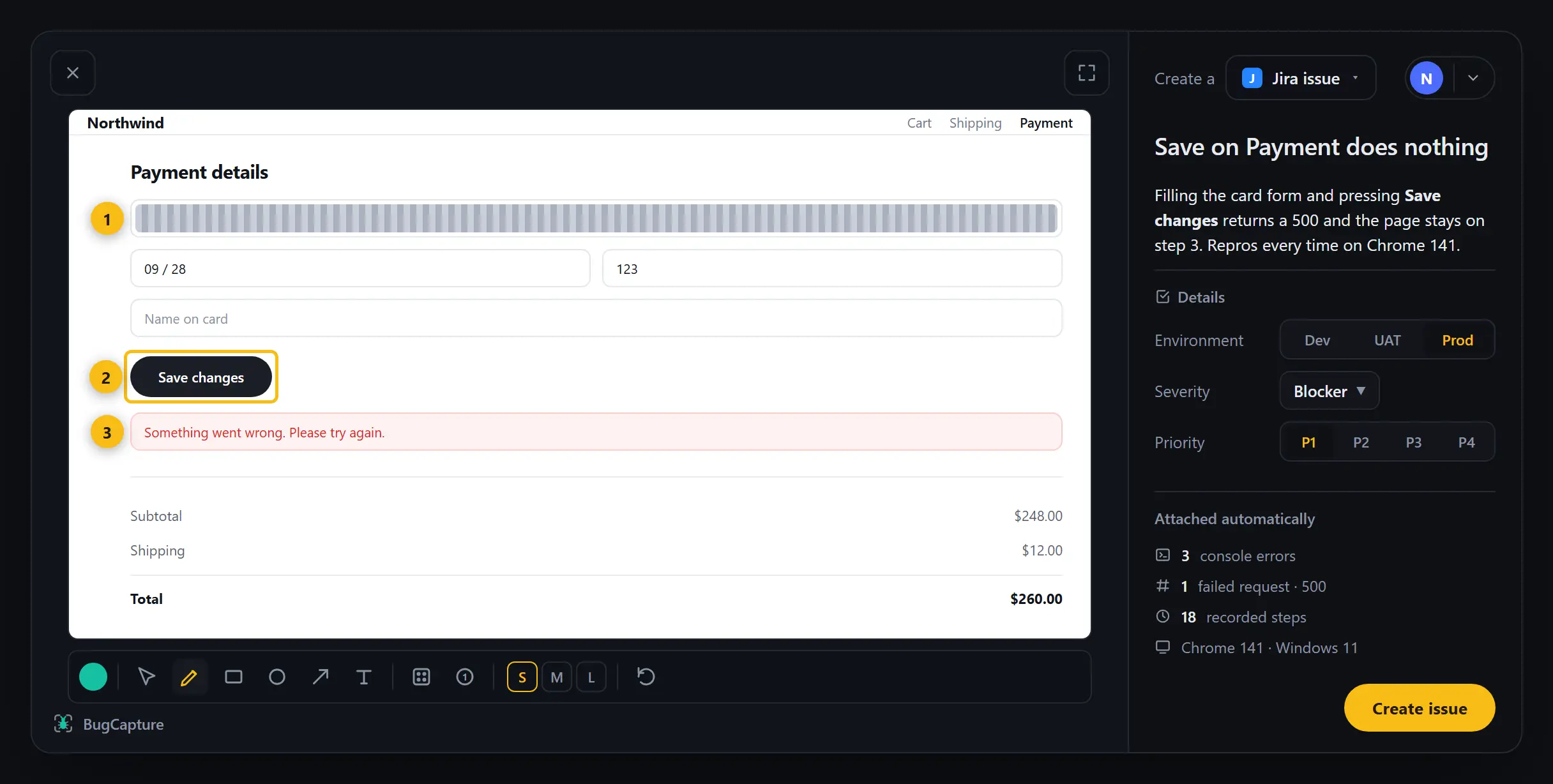
A screenshot opens in the annotator: select/move, pen, highlighter, rectangle, ellipse, arrow, line, text, blur, and numbered step pins — with three stroke widths (S/M/L) and undo/redo. Blur an element and it stays blurred in every copy of that image, including what gets filed to a tracker.
A recording gets a floating control bar over the page instead: the record indicator and clock, a blur button (mask something on the page without stopping the take), pause (freezes the clock; resume picks up where you left off), Stop, and restart (discard this take and record again).
Add the QA fields
Every report carries:
- Severity — Blocker, Critical, Major, Minor, Trivial
- Priority — P1–P4
- Environment — Dev, UAT, Prod
These aren't free-text — they're fields on the report, so a triage list can be sorted and filtered by them without anyone having parsed a description first.
If a report against the same URL and error already exists, you'll see a "Seen N×" notice instead of filing a duplicate — merge into the existing one, or file anyway if it's a genuinely different bug.
File it
From the capture editor, either:
- Create a → Jira / GitHub / Linear / ClickUp / Notion issue, or send to Slack, if you've connected one — see Connect your tracker; or
- Copy as markdown, or Share a link — no tracker required for either.
Everything attached — console, network, environment, and for a recording, the auto-generated steps to reproduce — travels with the report no matter which of these you choose.