Install the extension
Add BugCapture to Chrome, Edge or Firefox and pin it to your toolbar.
BugCapture ships on three browsers, from two packages.
| Browser | Store | Package |
|---|---|---|
| Chrome | Chrome Web Store | the Chrome package |
| Edge | Microsoft Add-ons, or install the Chrome package directly | the Chrome package, unmodified |
| Firefox | Firefox Add-ons (AMO) | a separate Firefox package |
Edge runs the Chrome package as-is — there is no separate Edge build, and installing from the Chrome Web Store works in Edge without anything extra.
Install
- Open chromewebstore.google.com (Chrome or Edge) or addons.mozilla.org (Firefox) and search for BugCapture, or use the install button on the homepage.
- Click Add to Chrome / Add to Firefox.
- Pin it to the toolbar — click the puzzle-piece (Chrome/Edge) or the extensions icon (Firefox), then the pin next to BugCapture. Capturing works either way, but a pinned icon is one click instead of two.
- Click the icon and sign in.
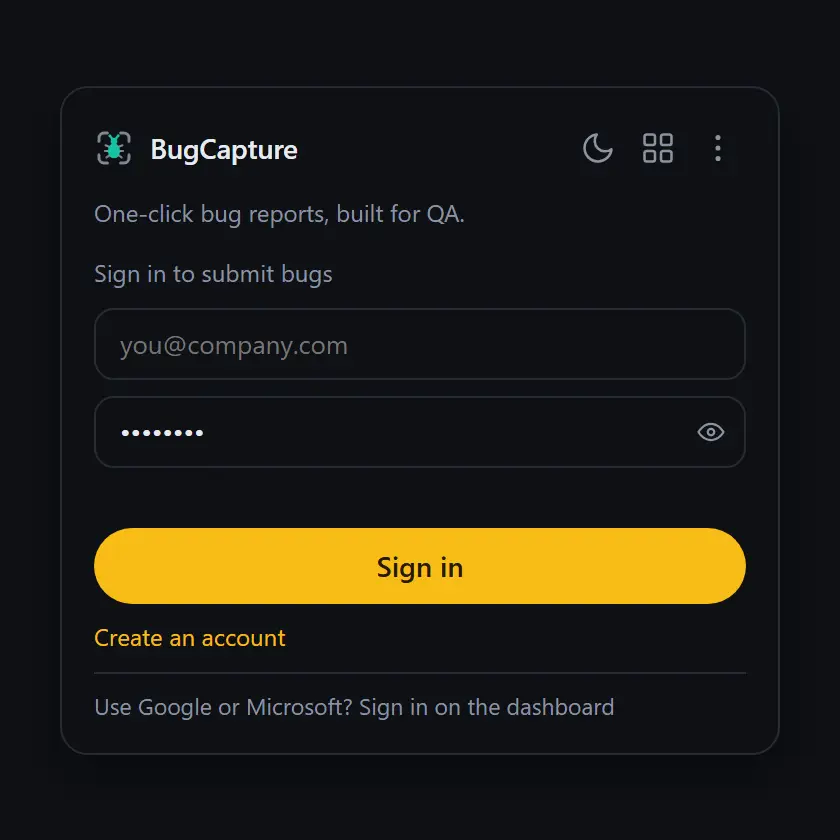
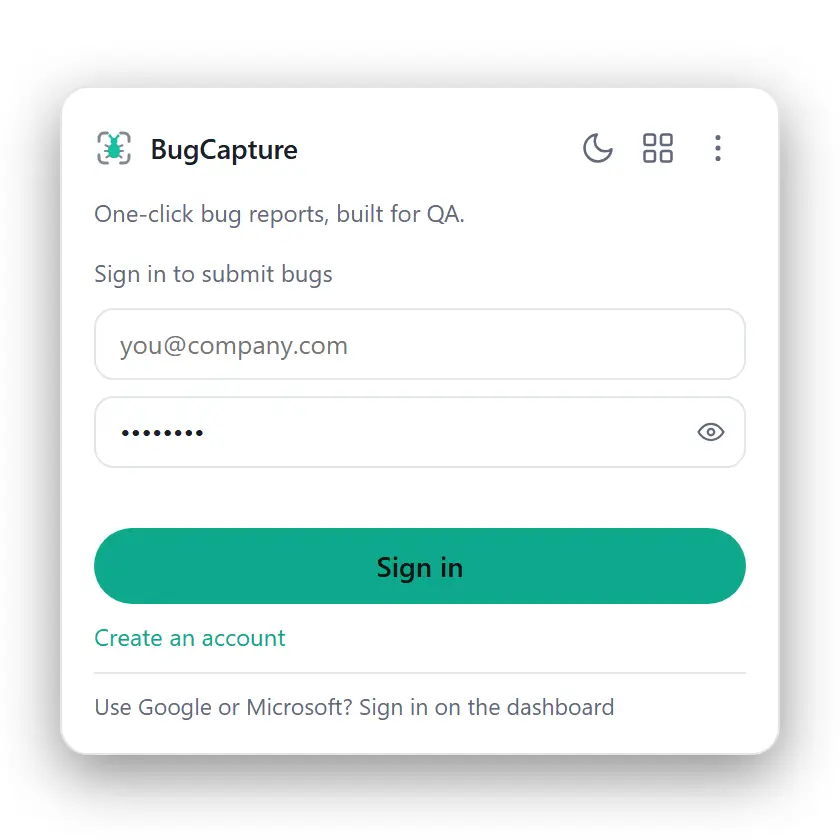
Nothing else to configure. A free workspace is created automatically on first sign-in — see Workspace setup for what that includes.
Where it works
Once installed, BugCapture works on any web page you can open — production, staging, an internal tool, or localhost. It doesn't need the target page to install anything or add a script tag; the extension does the capturing.
It cannot run on:
- Browser-internal pages (
chrome://,about:,edge://) - Other extensions' pages, and the extension stores themselves
- A page with an unusually strict Content Security Policy may block part of the console capture; the screenshot and everything else still works. See Browser support.
Updates
The extension updates itself through the browser's normal extension-update mechanism — nothing to do on your end. If a change doesn't seem to have taken effect, a manual reload from the browser's extensions page (chrome://extensions, about:addons) forces it.